Access Remote Computer
Welcome to MaxTwo
This is a short tutorial describing how to access and set up the MaxTwo system. You will need access to the remote Linux computer and the MaxTwo cell culture system, as well as excitable cells growing on 6- or 24-well MaxTwo plates.
Always make sure to book the system on EZBooking.
If you do not have access to the booking system, contact a staff member.Turn on the MaxTwo recorder and gas mixer (located underneath the microscope on a small incubator).
Allow the MaxTwo recorder to warm up for 10–15 minutes and the gas mixer to calibrate to 5% CO₂.
If it is not possible to arrive earlier, ask a staff member to turn the system on for you in advance.
Place Plate into the Recorder
Click once on the blue button
(touchscreen style, only light pressure is needed).Place the plate into the recorder.
Make sure the two notches on the upper short side align with the corresponding holes on the plate.Double-click the blue button
(this can also be done from the software).Close the recorder by clicking once on the blue button.
If you are using a 6-well plate, make sure to remember the unique plate ID.
Access the Linux Computer
To access the recording Linux computer, you need Citrix.
There are several ZMB tutorials explaining how to set this up for the first time on
Windows,
Mac, or
Linux.
Click on “EPHAC MaxTwo VM” and connect to the PC via Remote Desktop (RDP).
See the troubleshooting section below if something goes wrong.
The username and password of the remote computer will be communicated to you separately.
If you are connected to the UZH intranet, either directly or through VPN, you can also access the remote computer directly via RDP. This allows you to set custom screen resolutions. Contact staff for more information.
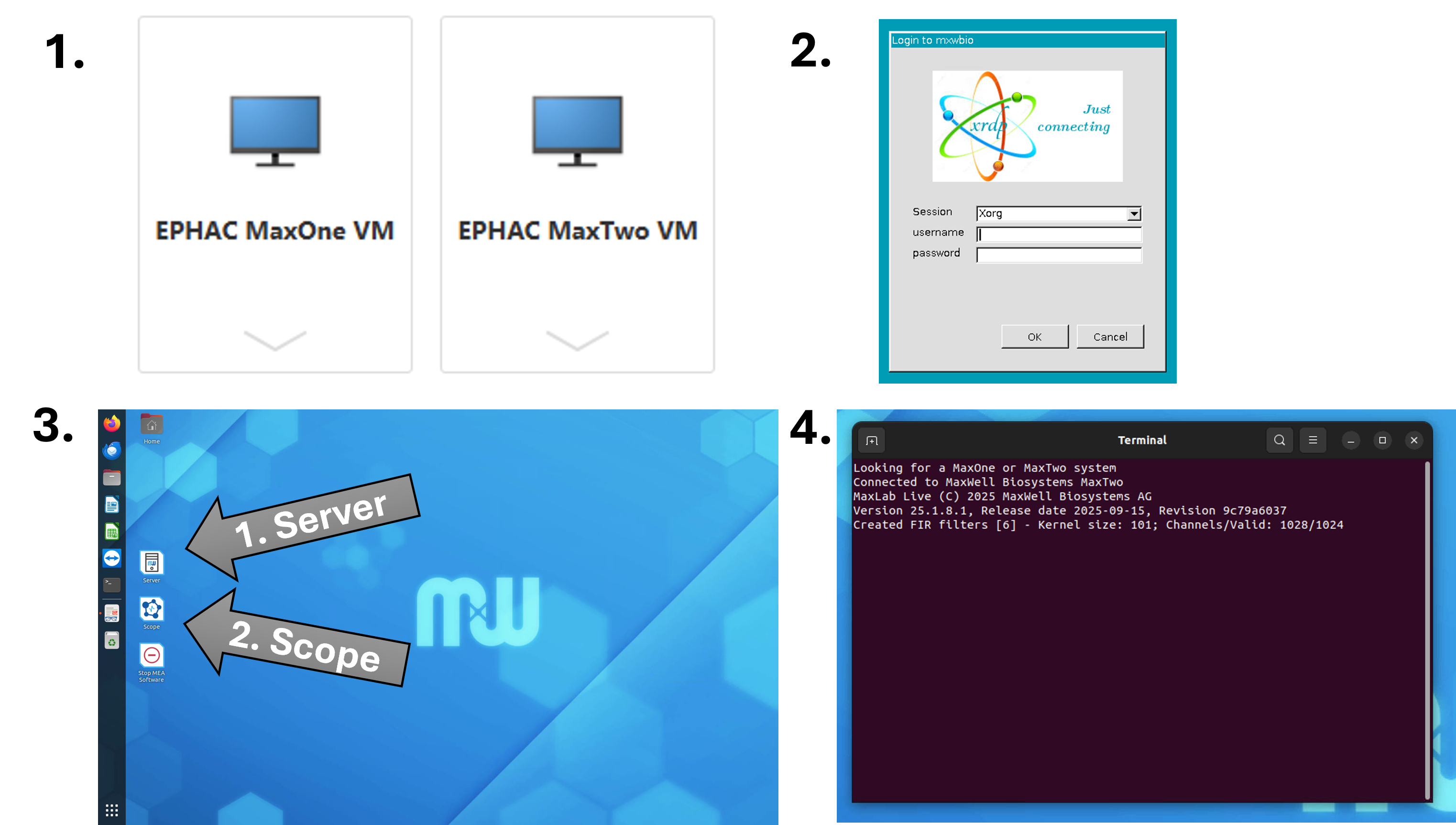
Start MaxLab Live Scope
If programs are still open from a previous user, close everything and start fresh.
- Connect to the MaxTwo recorder by clicking on “Server” on the desktop.
- Open MaxLab Live, then start the program called “Scope”.
Initiate the Plate
Click “Initiate” (near the bottom-left corner).
24-well plates:
The plate ID is detected automatically. Always verify that the detected ID matches your plate, as in rare cases the previously recorded plate may be shown.6-well plates:
Enter your plate ID manually.
Set and Check the Offset
- Click “Offset”.
- Observe the Offset Histogram in the upper-right corner.
A narrow histogram indicates that the plate is properly connected.
If the histogram is very wide:
- Reseat the plate via MaxLab:
- Click the icon resembling the MaxTwo recorder
- Select Unlock Plate, then re-lock it
- Alternatively, reseat the plate physically by double-clicking the blue button on the recorder.
MaxLab Scope GUI Overview
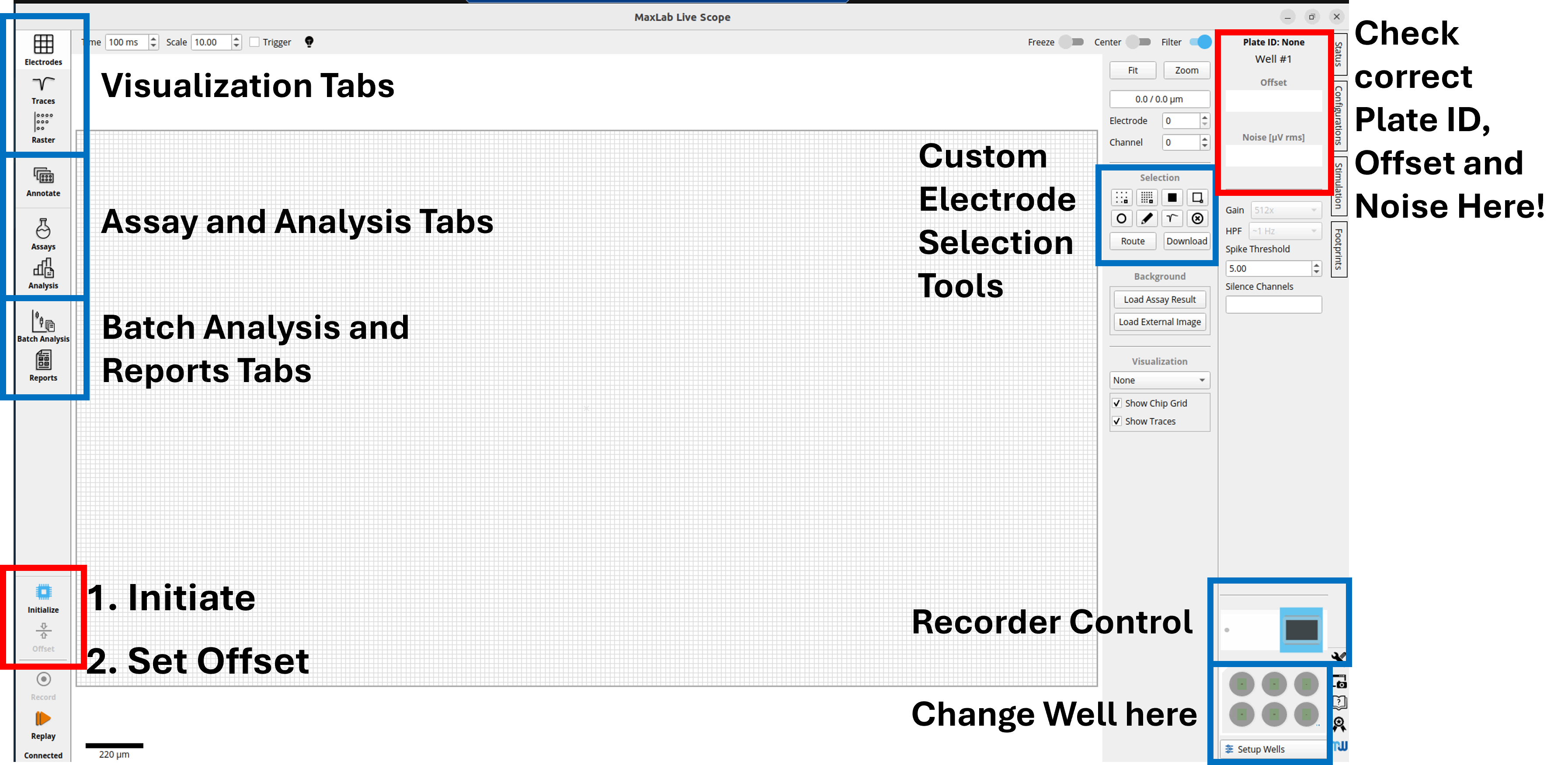
You are now ready to start a recording.
Happy spiking!
Troubleshooting
I cannot see the Citrix icon for the Linux computer
- Refresh apps in Citrix (wheel cog icon, upper right corner)
- Restart your computer and make sure you are using the latest Citrix version
- Try connecting via the browser-based version of
Citrix - Contact a staff member or the ZMB IT department
The Linux computer is very slow or the display does not show the whole window
This is a known issue on macOS and/or large (4K) displays.
Contact staff for available workarounds.
I was disconnected and now see “Number of sessions reached”
- Close Citrix completely
- Wait 5 minutes before reconnecting
If the problem persists or repeats, use direct RDP access to connect to the Linux computer.
I cannot set the Offset or the plate ID is wrong (24-well plates only)
Close MaxLab and the Server connection, then restart and reconnect.
If the problem persists, reseat the plate in the MaxTwo recorder:
- From MaxLab:
- Click the recorder icon
- Select Unlock Plate, then re-lock it
- You may need to close and reopen MaxLab once more
- Or physically on the recorder:
- Double-click the blue button
- From MaxLab: